What Shipped in HighLevel Workflows & AI Studio
HighLevel shipped two daily-use improvements for teams managing lead routing workflows and building sites or web apps in AI Studio:
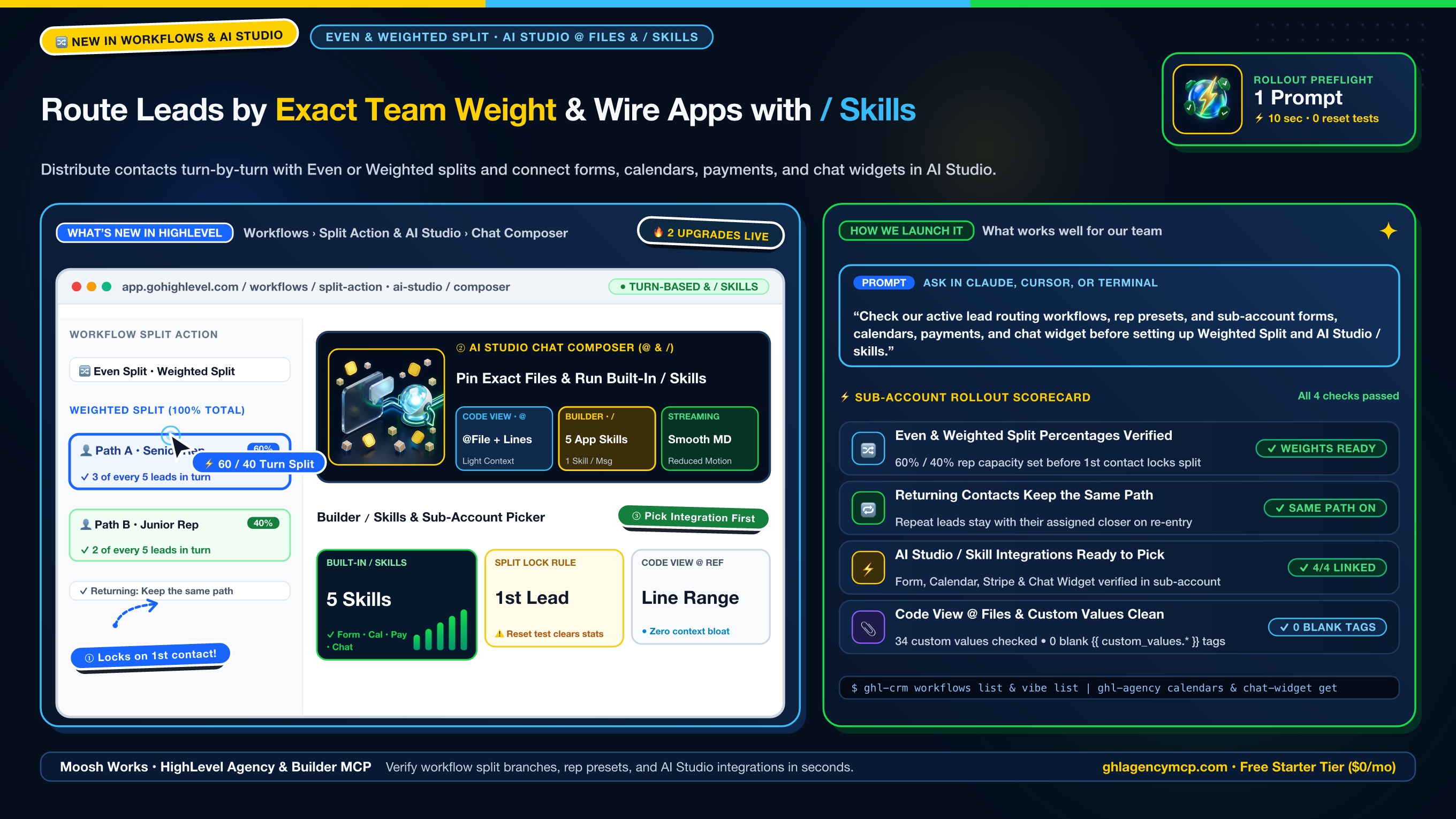
- Turn-Based Even Split & Weighted Split in Workflows: In Automation > Workflows, the Split action now lets you choose between Random split, Even split (sends contacts to each path in turn so small lead batches stay balanced), and Weighted split (turn-based whole-number percentages totaling
100%, such as 60% / 40% to send 3 of every 5 contacts to Path A and 2 to Path B). You can also set Returning contacts to Keep the same path so repeat leads follow the same branch they took on their first visit.
- Richer
@ File References & / Skills in AI Studio: In AI Studio Code view, typing @ lets you reference a project file (and optional line or line range) so the assistant knows which file you mean without pinning the full file contents into context. In Builder, typing / opens five built-in skills—Database Optimization, Form Tracking, Calendar Integration, Payment Integration, and Chat Widget (one skill per message)—and prompts you to pick the exact sub-account resource before running.
In our experience, checking your sales team's split weights before the first lead enters—and confirming that your sub-account's forms, calendars, payment gateway, and chat widget are already set up—saves you from having to reset workflow stats or stop mid-prompt in AI Studio.
Step-by-Step Setup & Sub-Account Verification
Step 1: Verify Rep Capacity & Workflow Branches Before the First Contact Locks Your Split
Once the first contact enters an Even split or Weighted split, HighLevel locks the distribution settings so your test metrics stay accurate. Editing the split type, adding or removing paths, or changing percentages later requires clicking Reset test, which clears existing statistics and restarts the turn-based rotation. We like to check active workflows and staff presets before publishing:
ghl-crm workflows list --location ve9EPM428h8vShlRW1KT --json
ghl-agency user presets --json
ghl-agency custom-values validate --location ve9EPM428h8vShlRW1KT --json
✓ Lead Routing Workflow verified: 2 paths ready (60% Senior Closer / 40% Junior Rep = 100%)
✓ Returning contacts set to "Keep the same path"
✓ Scanned 34 custom values: 0 blank {{ custom_values.* }} merge tags
Step 2: Confirm Sub-Account Integrations Before Running / Skills in AI Studio
When you type / in AI Studio Builder and pick Form Tracking, Calendar Integration, Payment Integration, or Chat Widget, the chat composer asks you to select the specific integration from your sub-account before sending the message. Run a quick read-only check so the right form, calendar, payment setup, and chat widget are ready to pick:
ghl-crm vibe list --location ve9EPM428h8vShlRW1KT --json
ghl-crm forms list --location ve9EPM428h8vShlRW1KT --json
ghl-agency calendars list --location ve9EPM428h8vShlRW1KT --json
ghl-agency payments integrations --location ve9EPM428h8vShlRW1KT --json
ghl-agency chat-widget get --location ve9EPM428h8vShlRW1KT --json
✓ AI Studio project verified
✓ Sub-account Form, Booking Calendar, Stripe gateway, and Live Chat Widget active
Step 3: Use @ File & Line References in AI Studio Code View
When editing code in AI Studio Code view:
- Type
@ in the chat composer (or select a file or line range in the editor to add it to chat).
- Keep the reference focused on the exact file and line range you want updated—AI Studio passes a lightweight reference rather than stuffing the full file into every prompt.
- Switch back to Builder when you want to run a
/ skill (one skill per message).
One-Prompt MCP Recipe (Claude, ChatGPT, Cursor & Antigravity)
With https://ghlagencymcp.com/mcp connected, what's worked well for us is running a single preflight prompt before enabling Weighted Split or wiring an AI Studio project:
"Check our active lead routing workflows, rep presets, and sub-account forms, calendars, payments, and chat widget before setting up Weighted Split and AI Studio / skills."
• ghl_crm_workflows { "action": "list", "location": "ve9EPM428h8vShlRW1KT" }
• ghl_agency_calendars { "action": "list", "location": "ve9EPM428h8vShlRW1KT" }
• ghl_agency_chat_widget { "action": "get", "location": "ve9EPM428h8vShlRW1KT" }
• ghl_agency_custom_values { "action": "validate", "location": "ve9EPM428h8vShlRW1KT" }
Frequently Asked Questions
What is the difference between Random split, Even split, and Weighted split in HighLevel Workflows?
Random split assigns each contact independently by chance, which can cause uneven distribution in small lead batches. Even split routes contacts to each path in turn so small batches stay balanced. Weighted split distributes contacts in turn using whole-number percentages that add up to 100% (for example, 60% / 40% sends 3 of every 5 contacts to Path A and 2 to Path B).
Why are my Even split or Weighted split percentages locked in a HighLevel workflow?
HighLevel locks the distribution settings once the first contact enters an Even split or Weighted split so your test results stay accurate. To change the split type, add or remove paths, or edit percentages, click Reset test in the Split action—this unlocks editing, clears existing path statistics, and restarts the turn-based rotation.
How do @ file references and / skills work in the HighLevel AI Studio chat composer?
In AI Studio Code view, type @ to reference a project file (and optional line or line range) without pinning the entire file into context. In AI Studio Builder, type / to select one built-in skill per message: Database Optimization, Form Tracking, Calendar Integration, Payment Integration, or Chat Widget. When a skill requires a sub-account resource, the composer prompts you to pick the specific form, calendar, payment gateway, or chat widget before running.