Generate Sharper Ad & Social Visuals in HighLevel Managed Agents with GPT Image 2.6
HighLevel just upgraded Image Generation in AI Agents > Agent Studio > Managed Agents to GPT Image 2.6 for Medium (1×) and High (~4×) quality while keeping Low (~0.1×) on GPT Image 2.5 for fast drafts across 1:1, 9:16, 16:9, and 21:9 aspect ratios. Agent Studio now includes a Compare costs view and logs the model, quality setting, and size in Agent Logs. In our experience, checking Brand Board colors, Media Library assets, and sub-account AI usage caps first helps teams generate clean campaign visuals while keeping spend predictable.
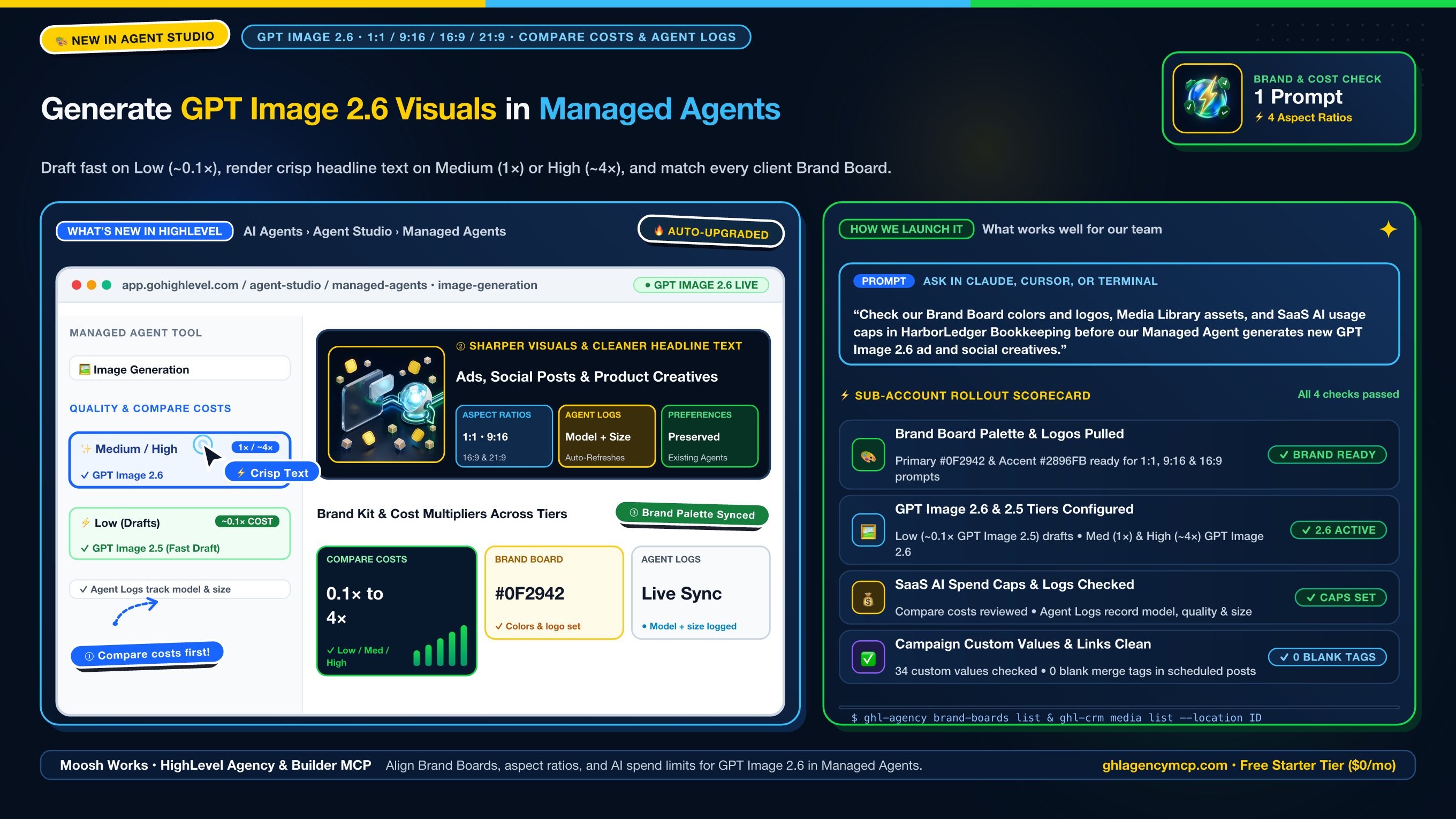
"Check our Brand Board colors and logos, Media Library assets, and SaaS AI usage caps in HarborLedger Bookkeeping before our Managed Agent generates new GPT Image 2.6 ad and social creatives."
• ghl_agency_brand_boards { "action": "list", "location": "ve9EPM428h8vShlRW1KT" }
• ghl_crm_media { "action": "list", "location": "ve9EPM428h8vShlRW1KT" }
• ghl_agency_saas { "action": "subscriptions", "company": "c8Qp4M9xLz2vN6wB1cRt" }
• ghl_agency_custom_values { "action": "validate", "location": "ve9EPM428h8vShlRW1KT" }
How to Roll Out GPT Image 2.6 in Managed Agents Across Sub-Accounts
1. Pull client Brand Board colors and logos for image prompts
Run ghl-agency brand-boards list --location <ID> to inspect the sub-account's primary hex colors, typography, and logo assets before prompting the agent. Passing the client's exact color tokens into your Managed Agent instructions keeps 1:1 feed graphics, 9:16 vertical stories, 16:9 ad banners, and 21:9 headers visually consistent.
2. Select Low (~0.1×), Medium (1×), or High (~4×) in Agent Studio
In AI Agents > Agent Studio > Managed Agents, open your agent, enable Image Generation, and click Compare costs to review the relative pricing across tiers. What's worked well for us is using Low (~0.1×, GPT Image 2.5) when testing layout concepts and switching to Medium (1×) or High (~4×) on GPT Image 2.6 for final ads and social graphics that need crisp headline text.
3. Check Agent Logs and sub-account AI usage caps
In Agent Logs, inspect the recorded model, quality tier, and image size for each completed generation (the activity view refreshes automatically when background runs finish). We like to check ghl-agency saas subscriptions --company <ID> and ghl-agency custom-values validate --location <ID> so client AI spend stays within monthly limits and scheduled posts go out with zero blank merge tags.
Frequently Asked Questions
Which image models and relative cost tiers do HighLevel Managed Agents use for Image Generation?
In AI Agents > Agent Studio > Managed Agents, Medium (1× relative cost) and High (~4× relative cost) quality tiers now use GPT Image 2.6 for sharper details and clearer text. Low (~0.1× relative cost) continues using GPT Image 2.5 for fast, economical drafts. Existing agents receive the upgrade automatically with their saved quality preference preserved.
What aspect ratios does Managed Agent Image Generation support?
Managed Agents support multiple aspect ratios including 1:1 (square feed posts and product tiles), 9:16 (vertical stories and Reels), 16:9 (landscape video thumbnails and presentation slides), and 21:9 (ultrawide banners and headers).
How can I track which model, quality tier, and image size an agent used?
Use the Compare costs option in Agent Studio when selecting Low (~0.1×), Medium (1×), or High (~4×) quality, and check Agent Logs to see the exact model, quality setting, and image dimensions for each generated visual. The activity feed refreshes automatically when background image executions finish.
How do I prepare a client sub-account for GPT Image 2.6 creative generation with MCP?
In HighLevel Agency & Builder MCP, run ghl_agency_brand_boards to pull the client's official hex colors and logos for image prompts, ghl_crm_media to review existing Media Library assets, ghl_agency_saas to check sub-account AI usage caps before running High (~4×) batches, and ghl_agency_custom_values to verify zero blank merge tags in scheduled campaign posts.
Claim 100% Free Agency Unlimited MCP
Get full access to all 55+ agency management and CRM builder tools ($79/mo value) plus our $612 Operator Vault at zero cost when you start or upgrade HighLevel with our partner link.